First Login
RSSMonster is multi-user by default. It does not ship with a shared default username or password: each user first creates an account and then signs in with their own credentials.
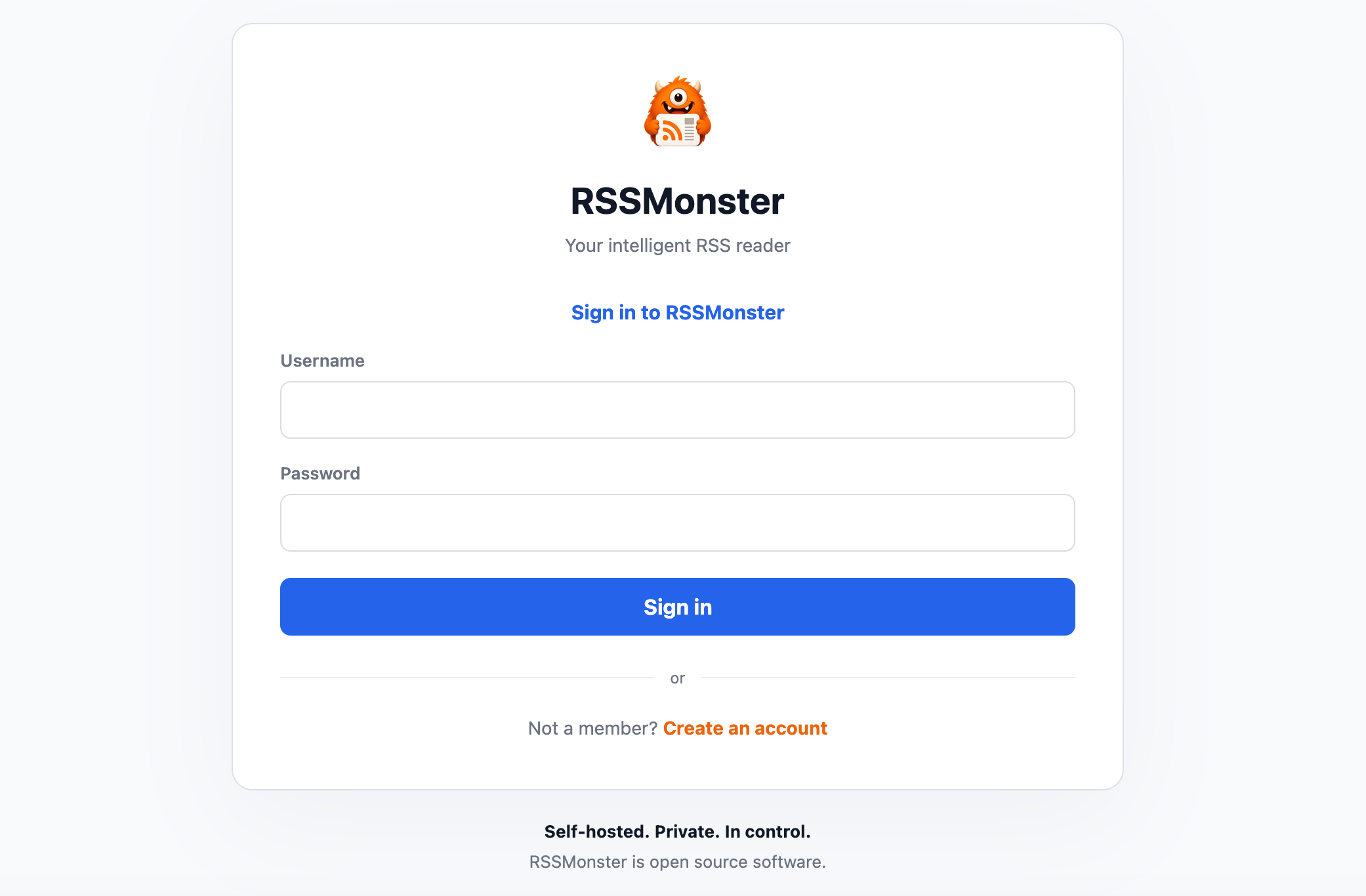
Create Your Account
After starting RSSMonster, open its address in a browser. The default Docker installation is available at http://localhost:3000.
- Select Create an account on the sign-in page.
- Enter a username and password, then repeat the password. If the server requires email, also enter your email address.
- Select Register.
- If email verification is required, follow the link sent to that mailbox.
- Return to the sign-in form and enter the credentials you just created.
The first account registered in a new RSSMonster database receives the admin role. Later registrations create regular user accounts. Each person should register and use their own credentials so that subscriptions, articles, reading state, preferences, and other user data remain scoped correctly.
Keep your credentials somewhere safe. RSSMonster has no default account to fall back to. When email is enabled, existing users without a verified address complete email enrollment on their next sign-in. See Account and Email for password recovery, address changes, and briefing delivery.
Disable Public Registration
For a private installation, open Settings → Server settings as an administrator and save Disable registration after creating the accounts you need. Alternatively, set ALLOW_REGISTRATION=false in the server environment. Disabling registration removes Create an account from the sign-in page and rejects direct registration API requests with HTTP 403. Existing users can still sign in and recover their passwords as before. Registration is enabled by default.
On a new installation, keep access restricted to a trusted network while you leave registration enabled and create the first account using the steps above. That account becomes the administrator. Create any other required accounts, then disable registration before making the installation more widely accessible. There is no first-user exception: if registration is disabled with an empty database, no account can be created until you enable it again.
For a manual installation, add ALLOW_REGISTRATION=false to server/.env and restart the server. For Docker Compose, add the setting to the existing service:
services:
  rssmonster:
    environment:
      ALLOW_REGISTRATION: "false"
The saved UI choice takes precedence over ALLOW_REGISTRATION and applies without a restart. Select Use environment default and save to remove that override.
Recreate the container to apply an environment change. The root .env alone does not pass this variable into the container. To reopen registration, save Allow registration in Server settings, or use the environment default and remove the environment flag or set it to true, then restart the server or recreate the container.
Optional Development Login
RSSMonster can automatically establish a session for one existing user. This can be convenient during debugging or for a personal installation on a trusted network where repeatedly entering credentials is undesirable.
Add the following to server/.env:
NODE_ENV=development
ENABLE_DEVELOPMENT_LOGIN=true
DEVELOPMENT_LOGIN_USER_ID=1
server/.env applies to a manual installation. Docker Compose does not pass arbitrary values from the root .env into the container. For Docker, change the rssmonster service’s existing NODE_ENV value to development and add the other two variables under environment:
services:
  rssmonster:
    environment:
      NODE_ENV: development
      ENABLE_DEVELOPMENT_LOGIN: "true"
      DEVELOPMENT_LOGIN_USER_ID: "1"
All three settings are required:
NODE_ENV=developmentgates the development-login endpoint. It does not operate whenNODE_ENVisproductionortest.ENABLE_DEVELOPMENT_LOGIN=trueexplicitly enables the bypass.DEVELOPMENT_LOGIN_USER_ID=1selects the existing user whose session will be created. Replace1if the intended user’s database ID is different.
Restart the server after changing server/.env. When the browser has no active session, the client requests a development session and opens RSSMonster as the configured user without showing the normal credential step.
The selected user must already exist. On a new installation, register the user normally before enabling development login. If the ID is missing or invalid, RSSMonster leaves the sign-in page available and reports that development login is unavailable.
Security Considerations
Development login bypasses the username and password check for the configured account. Anyone who can reach that RSSMonster instance can obtain a session as that user. Use it only for local debugging or a personal instance whose network access is already restricted. Do not expose it to the public internet or use it for a shared installation.
To restore normal authentication, set:
ENABLE_DEVELOPMENT_LOGIN=false
Then restart the server. You may also return NODE_ENV to production for a production deployment; development login is disabled unless both of its gates are explicitly enabled.
For all related environment options, see the configuration guide.