Server Settings
Settings → Server settings lets administrators configure options that apply to everyone on the server. It is the last entry in the Settings sidebar. The first registered account becomes an administrator; regular users cannot view or change these settings.
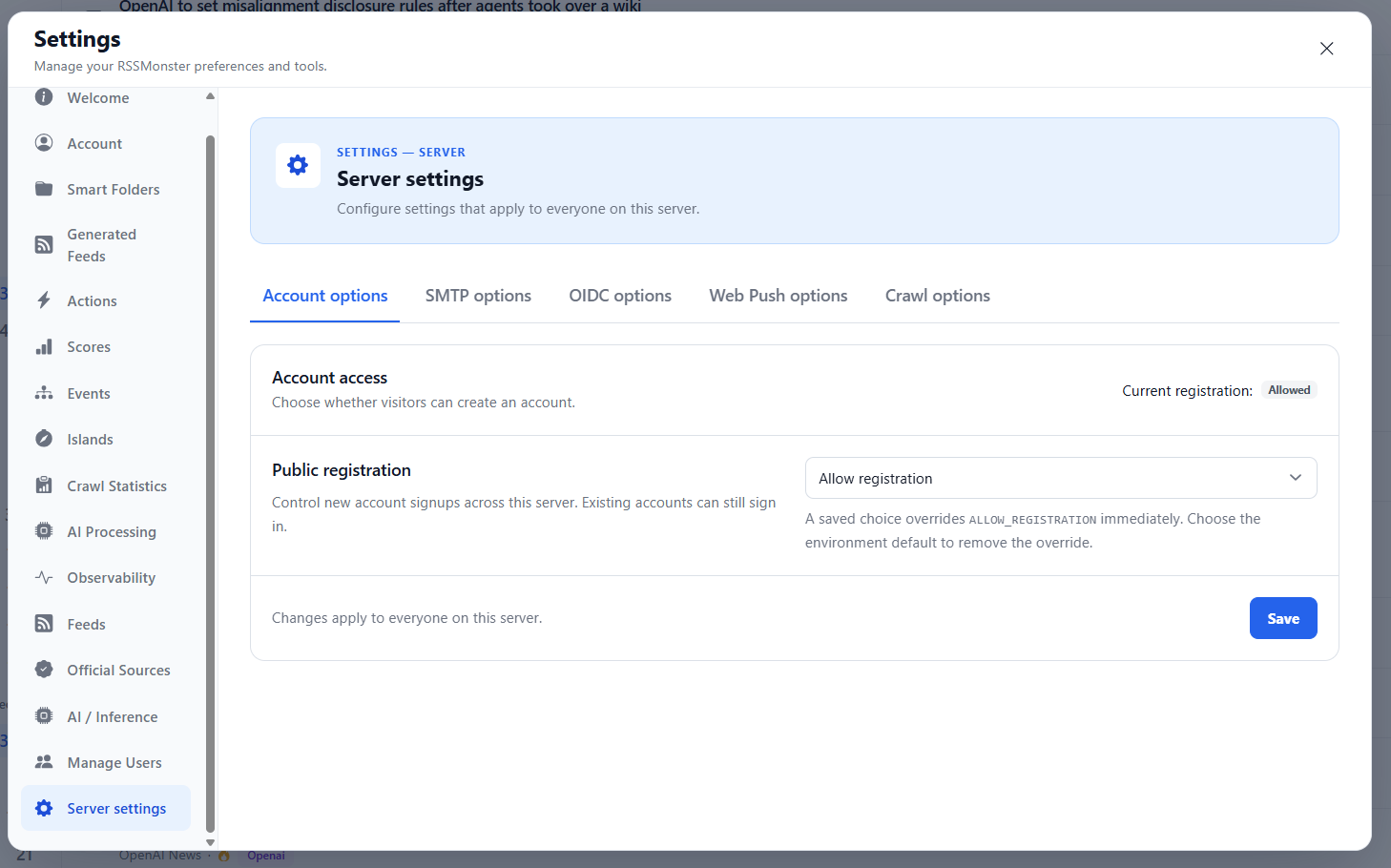
Use the tabs below the page introduction to switch between configuration groups. Each tab has its own save action. Switching tabs does not save your edits.
| Tab | What it controls |
|---|---|
| Account options | Whether visitors can register local accounts. |
| SMTP options | Outbound email, sender details, and SMTP connectivity testing. |
| OIDC options | Provider sign-in, local authentication, and account provisioning. |
| Web Push options | Browser notification keys and contact details. |
| Crawl options | Feed scheduling, request limits, and parser resources. |
Personal preferences remain under Account. User roles are managed under Manage Users, and inference configuration remains under AI / Inference.
Environment defaults and saved overrides
The deployment environment provides the defaults. Saving an override stores it in the database and takes precedence over the corresponding environment values; it does not edit your .env or Compose files.
For SMTP, Web Push, and Crawl, Override environment default manages the whole displayed group. For OIDC, OIDC_ENABLED controls the provider group while LOCAL_AUTH_ENABLED has a separate override. The checkbox chooses the source of the configuration; the Enabled/Disabled or Yes/No selector chooses whether the feature runs. You can therefore save an overridden configuration with a feature disabled.
To configure a group:
- Open its tab and check Override environment default.
- Review all fields in the group and enter any required credentials.
- Click that tab’s Save button and wait for the success message.
To return to the environment, clear the override checkbox and save, or choose Restore environment defaults and confirm. Restoration removes that tab’s saved overrides, including its credentials. It does not reset the other tabs. Account options instead provides Use environment default in its selector.
Changing an environment variable will not replace an active database override. Restore inheritance first if you want the deployment configuration to take over. Environment changes still require the affected processes to reload or restart; saved UI changes follow the timing described below.
Account options
Public registration offers three choices:
- Use environment default follows
ALLOW_REGISTRATION, which defaults totruewhen unset. - Allow registration lets visitors create local accounts.
- Disable registration closes local signups. Existing accounts can still sign in.
Click Save to apply the choice immediately. Current registration shows whether local registration is available. Disabling local authentication in the OIDC tab also makes local registration unavailable, regardless of this choice. OIDC account creation is controlled separately by Account provisioning.
SMTP options
The status cards show whether the email configuration is complete and whether email delivery is enabled. They do not prove that the SMTP server is reachable.
Check the override beside Enable email delivery to manage EMAIL_ENABLED and the SMTP settings together. Set the public application URL, host, port, TLS options, username, sender, and optional reply-to address. The public URL is used in verification, password-reset, and briefing links.
For port 587, use Use implicit TLS: No and Require STARTTLS: Yes. For port 465, use Use implicit TLS: Yes and Require STARTTLS: No.
When first enabling the override, enter the SMTP password if authentication is required. Override mode does not inherit the environment password or SMTP_PASSWORD_FILE. Password files remain available for environment-only configuration. An unchanged masked password retains a saved database password; editing replaces it, and clearing an edited field removes it.
After saving an enabled, complete configuration, click Test SMTP connection. This checks the saved connection without sending an email. Changes apply to new account/email operations immediately. Delivery and briefing workers pick them up on their next poll, within five minutes; an active batch can finish with its previous configuration.
See Email Configuration for SMTP requirements, email enrollment, delivery logs, and deployment examples.
OIDC options
Provider sign-in (OIDC) and Local authentication have independent override checkboxes. Enabling the OIDC override makes the provider fields editable as a group: issuer URL, client ID, callback URL, frontend URL, scopes, account provisioning, and client secret.
The callback must use /api/auth/oidc/callback. The frontend URL must be a root URL with the same scheme and hostname as the callback; ports can differ. Scopes must include openid. Account provisioning determines whether a first-time provider sign-in can create an account or must use an existing linked account.
An unchanged masked client ID retains its saved value, or the environment value if none is saved. The client-secret selector lets you keep the current secret, replace it, or use the environment secret. Stored credentials are not displayed.
At least one sign-in method must remain enabled. Test provider sign-in before disabling local authentication. Disabling local authentication also disables local registration, local password changes, and Fever/Google Reader access. Existing application sessions remain valid. Saved provider changes apply immediately and invalidate pending sign-in flows; start those sign-ins again.
See OIDC Configuration for provider setup, account linking, access restrictions, and a Google example.
Web Push options
Enable the group override and enter a matching VAPID public/private key pair and a contact subject such as mailto:admin@example.com. Both keys are masked; unchanged fields retain saved keys. The UI does not generate keys automatically.
Click Save Web Push settings to apply the configuration. Clear keys, then save, disables Web Push under the override. Restoring environment defaults uses the deployment keys again. Delivery resolves the configuration for each batch. Changing the key pair may require readers to subscribe again.
Server configuration does not grant browser permission. Each reader must still enable notifications in the app and allow them in their browser. See Web App and Notifications for key generation, HTTPS requirements, and device setup.
Crawl options
The group override controls scheduling, request limits, and parser resources. Review the units and limits beside each field before clicking Save crawl settings. Use suggested values fills the form but does not save it.
New crawls use the saved settings; active crawls keep their current limits. The crawl worker updates its polling interval between iterations, so an existing sleep is not interrupted. SQLite remains sequential. The saved effective mode and feed lease are shown below the fields; the lease is always at least twice the feed deadline.
See Crawling for worker operation and Configuration for the detailed override behavior.
Credentials and backups
Configure ENCRYPTION_KEY in the server environment before saving nonempty database credentials. Generate a Base64-encoded 32-byte key with:
openssl rand -base64 32
Keep the key stable and available to every server or worker that uses encrypted settings. SMTP passwords, OIDC client IDs/secrets, and VAPID keys are encrypted at rest; settings responses return presence/source information rather than their values. Back up the database and keep a secure backup of the encryption key separately. Losing the key makes encrypted credentials unreadable.
See Encryption of sensitive server settings for key setup and legacy-value migration, and Backup and Restore for deployment backup procedures.