Categories
Categories organize your feed subscriptions. You can give each category a name and icon, pin it for quick access, and choose how readily its articles join existing Events.
Edit a category
Select a category in the sidebar and choose Edit category. In the Update category dialog, change the settings you need, then select Update category to save. Close discards unsaved edits.
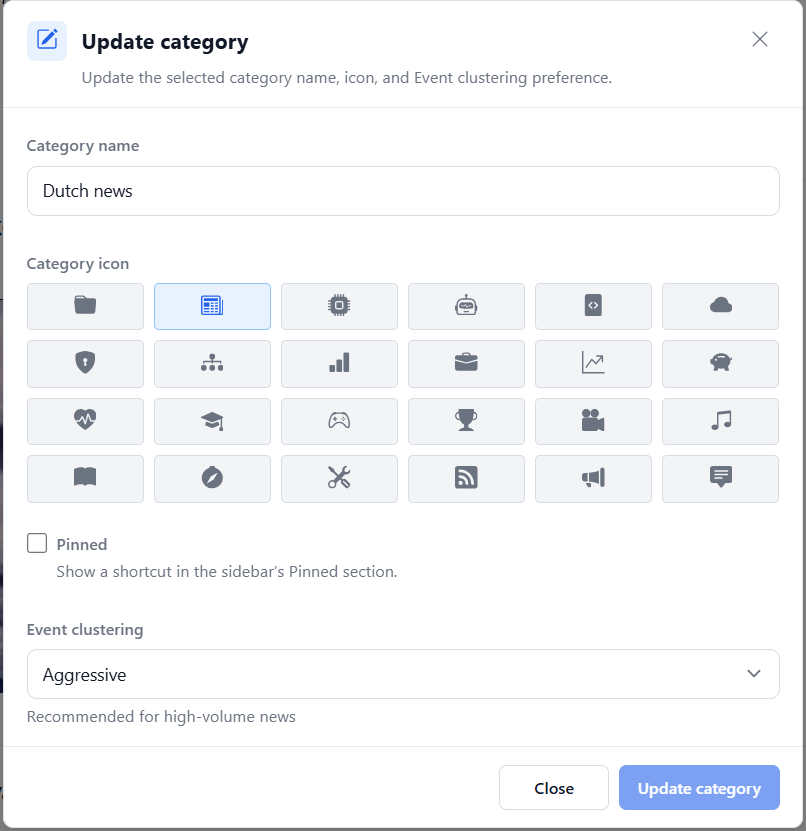
The Event clustering control appears when AI features are enabled.
Change the name or icon
Edit Category name to rename the category. Under Category icon, select an icon from the picker to make the category easier to recognize in navigation. The selected icon is highlighted. Names and icons can also be chosen when creating a category.
Changing a name or icon preserves the category’s feeds and articles.
Pin a category
Enable Pinned and save to add a shortcut to the sidebar’s Pinned section. The shortcut opens the same category and shares its selection state and counts. The category remains in its usual location; pinning does not move or duplicate its subscriptions.
Pinned shortcuts remain available even when normal sidebar filters hide an item. Disable Pinned and save to remove the shortcut. If no categories or feeds are pinned, the Pinned section is hidden. You can change the section’s position in Sidebar configuration.
Choose Event clustering
An Event groups coverage of one occurrence, such as several reports about the same announcement. Event clustering controls how permissive the normal semantic match is when an article from this category is considered for an existing Event.
| Option | Recommended use | Effect |
|---|---|---|
| Server default | Follow the administrator’s configuration. | Uses the server’s existing matching threshold. This is the default for new and existing categories without an explicit preference. |
| Aggressive | High-volume news. | More permissive matching; articles are more likely to join existing Events. |
| Moderate | Sports, gaming, and technology. | Uses a fixed middle setting. |
| Conservative | Blogs and niche feeds. | Stricter matching; articles are less likely to join existing Events. |
Lower thresholds allow more articles to join existing Events and tend to reduce fragmentation. Higher thresholds require closer similarity and can leave more articles standalone or spread coverage across more Events. Similarity is still only part of the decision: existing time, occurrence-identity, supporting-evidence, and ambiguity rules remain in force, including the near-identical-headline exception. Aggressive does not force every article into an Event.
The preference comes from the incoming article’s feed category, not from the categories of articles already in the Event. Categories are not boundaries that prevent coverage from different categories from sharing an Event.
The setting applies during subsequent Event attachment decisions, including the final membership check. Saving a new preference does not automatically regroup previously assigned articles. It does not change candidate retrieval, new-Event creation rules, embedding generation, similarity calculations, or Event lifecycle. It also does not change Interest Island, personal-interest, or Recommended scoring formulas.
When AI is disabled
The Event clustering control is hidden in both the create and update dialogs when AI features are disabled or not yet enabled. Category names, icons, and pinning remain available. Editing a category while the control is hidden preserves its saved clustering preference. New categories use Server default.
Stored values and server default
The category API stores this preference as clusteringBehavior:
| UI option | Stored value | Normal matching threshold |
|---|---|---|
| Server default | null | Configured EVENT_SIM_THRESHOLD, or 0.84 when unset |
| Aggressive | aggressive | 0.78 |
| Moderate | moderate | 0.84 |
| Conservative | conservative | 0.89 |
A missing value also uses the server default. Moderate is fixed at 0.84, whereas Server default follows the administrator’s configuration. Existing categories are not automatically assigned Moderate. These numeric thresholds are not exposed in the category dialog.
For Event grouping, supporting evidence, and administrator settings, see the Events guide. For feed organization and sidebar options, see Feeds and Categories.