What Are Smart Folders?
Smart Folders are declarative, dynamic views built using search expressions.
They update automatically as new articles arrive.

How They Work
- Each Smart Folder stores a search expression (same syntax as the Search Guide).
- Results refresh continuously as new items match the query.
- Limit: each folder returns up to
limitCountarticles (default 50). - Sorting respects the query (
sort:desc|asc,sort:topStories,sort:recommended, andsort:quality). - The editor exposes Newest, Oldest, Top Stories, Recommended, and Quality & source trust.
Create a Smart Folder
- Open Smart Folders in the app.
- Add a name and a search expression.
- (Optional) Set
limitCountto cap results (50 by default). - Save. The folder updates itself as content changes.
The visual editor’s Tag field matches one tag. Tag names may contain spaces, for example machine learning; they are serialized as tag:"machine learning". Article tag management supports multiple labels, but this field selects one tag condition.
Use the same tokens as the search bar: status (unread:true, saved:true), tags (tag:news), dates (@today, @"3 days ago"), Overall quality (quality:>0.7), freshness (freshness:>=0.5), event grouping (event:true, eventCount:>=3), hot items (hot:true), and sorts.
Overall quality and source-aware sorting
Overall quality measures the article alone: 50% Writing quality, 25% Tone, and 25% Ad-free content. Writing quality is just one component. The editor’s slider uses 0–100, while the quality expression uses 0–1: 75/100 becomes quality:>=0.75. Preview chips identify this article-only filter as Overall quality and show the threshold out of 100, preserving fractional points: quality:>=0.7475 appears as Overall quality >= 74.75/100. Trailing zeros are omitted; the stored expression and comparison operator are unchanged.
Quality & source trust (sort:quality) combines 70% Overall quality and 30% FeedTrust to rank results. Source trust affects this ordering, not the Overall quality filter. These labels preserve the existing expressions and formulas.
Publication time and first seen
The editor’s Article timing → Time filter separates two time bases:
| Choice | Expression | Meaning |
|---|---|---|
| Published: last 24 hours | @today | Published within the rolling last 24 hours. |
| Published: yesterday | @yesterday | Published during yesterday’s UTC calendar day. |
| Published: last 7 days | @lastweek | Published within the rolling last seven days. |
| First seen: last 7 days | firstSeen:7d | Never seen, or first shown on screen within the last seven days. |
| First seen: last 30 days | firstSeen:30d | Never seen, or first shown on screen within the last 30 days. |
Custom first-seen window accepts hours or days and uses the same exposure rule. First seen records when an article first appears on screen, not when it was published or whether it was read. Never-seen articles remain eligible regardless of publication date. For example, a month-old article never shown on screen can match firstSeen:7d, but it will not match @lastweek.
The Unread view’s date and age controls filter publication time. Its calendar ranges use local-day boundaries, whereas Smart Folder @yesterday uses UTC. These label clarifications preserve existing expressions and saved folders. Rule previews also identify publication windows and the never-seen inclusion.
Save an existing search as a Smart Folder
You can save an existing search expression directly from its results, without retyping it in Settings.
- Enter and run a search expression in the search bar, such as
copilotortag:ai unread:true sort:recommended. - Open the collection’s three-dot More actions menu and choose Save as smart folder.
- In Save current view, enter a Folder name and review Rules included.
- Select Save smart folder. The folder appears under Smart Folders in the sidebar, where you can open the saved search again.
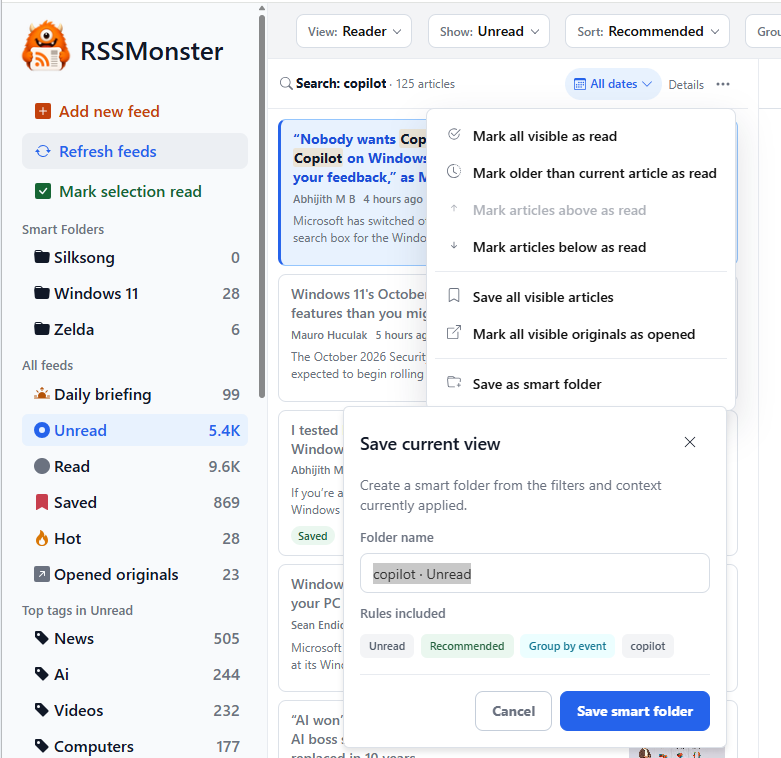
The screenshot shows a copilot search with Unread, Recommended, and Group by event included alongside the search text. You can change the suggested folder name before saving. To edit the saved expression later, open Settings → Smart Folders.
The action is available across article views, including compact layouts; it is hidden for non-search collections, an existing Smart Folder, or Daily Briefing. The draft includes the current search expression, status, tag, sort, grouping, and Overall quality threshold. The unread view’s Today and Yesterday presets are included. Feed/category selection and publication-date controls without equivalent query rules are omitted; the dialog flags that omission. The saved folder is a dynamic query, not a snapshot of today’s list: its results update as articles arrive or their state changes.
Recipes
- Top stories today:
@today unread:true sort:topStories limit:100 - High-quality long reads:
quality:>0.75 sort:quality unread:true - Consistently valuable articles and sources:
sort:quality unread:true limit:80 - Hot right now:
hot:true sort:desc - Events with broad coverage:
event:true eventCount:>=3 sort:topStories - Subject by tag:
tag:ai unread:true sort:recommended - Yesterday’s highlights:
@yesterday unread:true sort:recommended
Developing-story filters
The preview labels developing:true Developing stories and developing:false Not Developing stories. The true filter requires an unread article selected as its Event’s developing article, distinct from the representative. The false filter excludes articles matching that predicate.
This differs from Include developing coverage in Unread settings, which includes new coverage for Events you have already seen, and Include developing coverage in the summary in Briefing settings, which affects only the morning summary. Neither inclusion setting means Show only developing stories.
Tips
- Combine status with time to keep the list focused:
unread:true @today. - Use
quality:>=0.7to filter after fetch; it can shrink the result set even if the limit is higher. - Use
event:truefor a low-noise event view. AddeventCount:>=3when you only want events with broad coverage. - If you omit status but include text, all statuses are searched; add
unread:trueorread:trueif you want to constrain.
AI Suggestions (Optional)
- When an OpenAI or Qwen generation provider is configured in the inference service, RSSMonster can propose Smart Folders from your reading patterns (feeds, tags, saved items).
- Suggestions follow the same search syntax and avoid duplicating your existing folders.