Feeds and Categories
Feeds are your subscriptions; categories organize those subscriptions. Start with Add new feed in the sidebar or mobile Options sheet. Supply a feed or website URL and review the discovered subscription before adding it. For a larger collection, import OPML. For sites without a usable RSS or Atom feed, use an HTML + XPath feed.
Add a feed
- Create a category first if you do not already have one.
- Choose Add new feed in the sidebar or mobile Options sheet.
- Enter the Feed or website URL and select its Category. Use the publisher’s direct feed URL when available.
- Choose Crawl since: Last 7 days is the default. You can also select the last month, three months, year, or Everything. This limits eligible articles by publication date; it cannot retrieve older articles that the publisher no longer includes in the feed.
- Leave Authentication type set to None for public feeds. For a protected feed, select HTTP Basic and enter the publisher-provided credentials as described below.
- Choose Validate feed. After successful validation, review or edit the discovered Feed name and Feed description, then choose Save changes.
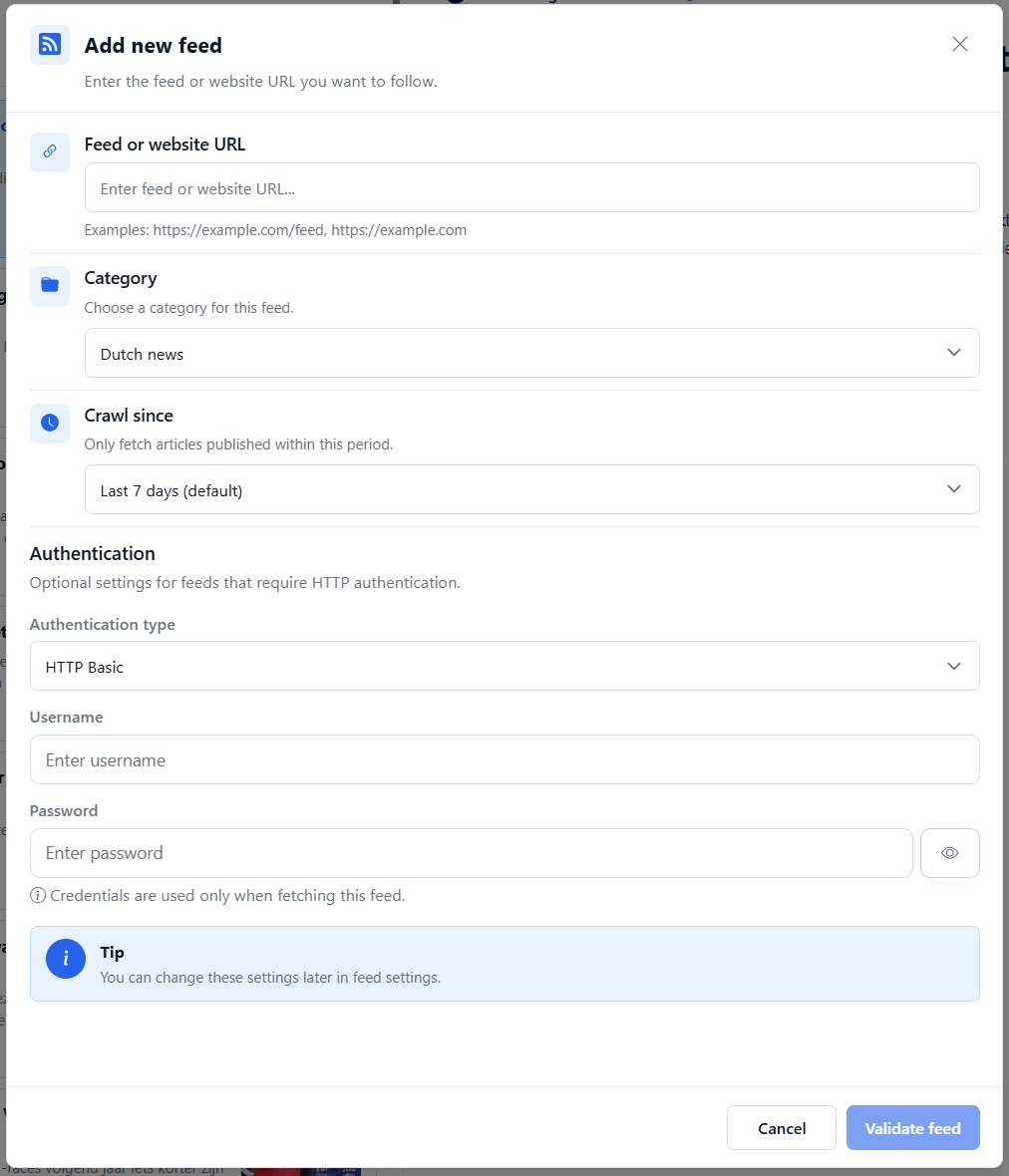
The screenshot shows HTTP Basic selected. New feeds default to None, which hides the username and password fields. If a website does not expose a supported feed, the dialog can offer Use HTML + XPath (Web scraping); see the HTML + XPath guide for that workflow.
HTTP Basic Authentication
Use Authentication → Authentication type → HTTP Basic for feeds whose publisher requires an HTTP username and password. These are the feed provider’s credentials, which may differ from your RSSMonster account credentials.
Both Username and Password are required before validating a new protected feed. The server removes trailing whitespace, including non-breaking spaces, from submitted usernames and passwords when validating or saving a feed. Leading and internal whitespace is preserved. The password is masked; the eye button toggles its visibility. RSSMonster uses the credentials during validation, feed discovery, initial retrieval, and subsequent manual or scheduled crawls. Scheduled crawling is available in server deployments; the desktop app uses manual refresh.
Keep credentials separate from the URL. Enter a URL such as https://example.com/private/feed.xml, then fill in the authentication fields. URLs such as https://username:password@example.com/private/feed.xml are rejected.
With None, RSSMonster stores and sends no HTTP authentication credentials. Switching from HTTP Basic to None immediately clears the form’s credential fields; saving that change removes the stored credentials. Switching back to HTTP Basic shows empty fields.
Edit saved credentials
Select the feed and open Edit feed. Its existing username is shown, but its saved password is never returned to the form. Leave the password empty to keep it, or enter a replacement and choose Save changes. The masked placeholder does not contain the decrypted password.
Authentication errors and redirects
- Authentication failed. Check the username and password. means the publisher returned HTTP 401. Check the credentials with the feed provider and try again.
- Access to this feed was denied. means the publisher returned HTTP 403. Check that the account has permission to access that feed.
- Authenticated feed discovery changed origin. Update the feed URL explicitly. means discovery reached a different scheme, host, or port. Verify the intended destination before changing the URL. RSSMonster strips authentication on cross-origin redirects and will not automatically save a different-origin URL for an authenticated feed.
Server setup and password storage
The server needs a valid ENCRYPTION_KEY before saving feed passwords. RSSMonster reuses its existing encryption mechanism to encrypt passwords at rest, decrypting them for feed retrieval. Passwords are excluded from normal Feed API responses and serialized feed objects; authentication diagnostics do not include credentials.
Keep the same encryption key available to the server and crawl workers, and back it up securely. See Encryption of sensitive server settings for key generation and configuration. Public feeds using None do not require an encryption key.
Organize subscriptions
Use the desktop sidebar to select individual feeds, create or rename categories, choose category icons, and reorder feeds or categories. Moving a feed to another category changes organization; it does not create a second subscription. On phones, the toolbar and Options sheet expose categories, while individual feed navigation is available in the persistent sidebar on wider layouts.
Categories contain feeds. Tags label articles, and Smart Folders select articles by a saved search. Use whichever matches the kind of organization you need.
See Categories for changing category names and icons, pinning shortcuts, and choosing an Event clustering preference for a category.
Sidebar counts
See Sidebar Settings for a screenshot and a complete guide to count display, section order, visibility, sorting, and feed icons.
Open the sliders button beside Categories to configure its category, feed, and All categories counts. Show total count displays selection/total (for example, 9/109); turn it off to show only the selected count. Declutter counts hides redundant totals, displaying 0 instead of 0/0 and 4 instead of 4/4, while keeping informative values such as 0/4. Both count-formatting options default to enabled. Hide zero-count items is disabled by default. Enable it to hide empty Smart Folders and tags, and categories and feeds whose count for the current selection is zero, even when their total is non-zero. Categories with non-zero children remain visible. The All feeds filters (Daily briefing, Unread, Read, and others) remain available regardless of their counts. Choose Save changes to apply settings and remember them for your account; Cancel discards edits.
Automatically hide inactive feeds is disabled by default. When enabled, choose 30, 60, or 90 days since a feed last received a new article. Inactive feeds move from their usual sidebar lists into a collapsed Inactive feeds group at the bottom of Categories. Expand it to select a feed; its original category and subscription remain unchanged. This group includes zero-count feeds even when Hide zero-count items is enabled. Categories with no remaining visible feeds are hidden while inactive-feed grouping is enabled. Their feeds, settings, and saved order are preserved; turning it off restores the categories (subject to the separate Hide zero-count items setting).
Receipt activity advances only when a new article is stored, including filtered articles. Successful crawls, unchanged entries, and revisions do not reset it. Newly subscribed feeds with no articles get the selected grace period from their subscription date. On upgrade, the latest retained article’s creation date supplies the initial receipt timestamp; activity from articles already deleted before the upgrade cannot be recovered. Future article cleanup does not erase receipt history.
Sort sidebar category items by defaults to Manual order, which preserves saved category and feed order. Name sorts A–Z; Selected count and Total count sort highest first. Selected count follows the current status (for example, Unread or Favorites), regardless of the count display options. Recently active sorts by the latest new article receipt, with feeds that have never received an article last; categories use the latest receipt among their feeds. Equal values retain manual order. Automatic sorting hides Reorder and does not overwrite manual order. The Inactive feeds group stays at the bottom, with its feeds sorted by the chosen option. Smart Folders, tags, and All feeds filters are unaffected.
Sort by current selection enables dynamic sorting, highest count first for Unread, Favorites, Hot, or whichever status is selected. It is disabled by default. While enabled, the other sort selector is disabled and its stored choice is ignored; turning dynamic sorting off restores that choice. Reorder remains hidden while dynamic sorting is on, and Inactive feeds stay in their bottom group.
Show feed favicon icons is enabled by default. Disable it to remove feed icons (including the fallback RSS icon) from category lists and the Inactive feeds group. Feed names, counts, and category icons remain visible.
Sidebar section order API
GET /api/sidebar/settings and startup’s sidebarSettings include sectionOrder. It defaults to ["pinned", "smart-folders", "all-feeds", "top-tags", "categories"]. The existing PUT /api/sidebar/settings accepts this array inside settings, alongside the other sidebar preferences. All five IDs must appear exactly once; invalid submitted orders return HTTP 400. Omitting the field preserves the saved order for older clients.
The preference is stored per user in one nullable JSON column on sidebar_settings. Null or malformed stored values use the default order. Arrays retain recognized IDs in their saved order, discard duplicates and unknown IDs, and append missing sections. Older preferences without Pinned place it at the top, preserving its previous location. Saving section order in the configuration dialog immediately reorders the five sections without a page reload. Global actions remain above them, and the management/footer actions remain below them.
Pin state API
Feeds and categories store a pinned boolean, defaulting to false. Their existing PUT /api/feeds/:feedId and PUT /api/categories/:categoryId endpoints accept {"pinned": true} or {"pinned": false} without other fields. Only the owner can change this value. Sidebar overview responses include pinned on each category and feed. Pinned categories and feeds appear as shortcuts below the global sidebar actions by default. The Pinned section can be moved in Sidebar configuration. Categories come first; each type follows the sidebar’s current ordering. Shortcuts share the original navigation, selected state, and count formatting. They remain available when normal-list filters hide an item, without changing its category or removing its original occurrence. The section is hidden when no items are pinned. Select a feed and open Edit feed, or select a category and open Edit category, then change Pinned and save. Pinning adds a shortcut; unpinning removes it. Changes appear after the update succeeds, and closing the dialog without saving discards the edit.
Edit feed processing
The feed editor includes a display name, description, category, active/disabled status, and these processing controls:
| Control | Meaning |
|---|---|
| Update interval | Base crawl cadence; publisher caching and retry deadlines can delay the next fetch. |
| Generate embeddings | Generate article vectors when server inference settings permit it. |
| Apply AI analysis | Request summaries, generated tags, sentiment, quality, and advertisement analysis when enabled on the server. |
| Feed tags | Labels separated by spaces or commas. |
| Item filter | Accept only future entries matching the filter expression. |
Per-feed AI switches do not override the server’s master disable flags. Changing a processing option does not automatically rebuild historical article analysis. See Article Embedding and Server Jobs before considering historical processing.
Muting controls visibility. Disabling a feed stops its normal scheduled crawling. Deleting a feed is a destructive subscription action; review the confirmation before proceeding and use backups for recovery.
Refresh and diagnose
Refresh feeds requests publisher fetching and displays crawl progress. Refreshing an article collection, including mobile pull-to-refresh, reloads stored results and is a different operation.
In Settings → Feeds, inspect a feed’s health, recent crawl history, article counts, warnings, and request attempts. Retry a failing feed after checking its reported error. For feeds in error, the editor can offer AI-assisted RSS rediscovery when AI is enabled; review the suggested URL and save the change. Rediscovery can return no result.
For stale subscriptions, check that the feed is active, the crawl worker is running, and cache or retry deadlines have elapsed. See Crawling for scheduling, network restrictions, and worker diagnostics.
Identify official sources
Settings → Official Sources lets you add an organization, its domain, and an enabled flag. During crawling, matching articles are marked official and stored with the organization name. See Official Feeds for setup instructions and domain-matching examples. This is a configured source designation, not a verification of an article’s factual accuracy or a replacement for FeedTrust.