Sidebar Settings
Use sidebar settings to choose how counts appear, reduce long subscription lists, and arrange sections and feeds. Open the sliders button beside Categories in the sidebar to display Sidebar configuration settings.
Choose Save changes to apply your choices immediately and remember them for your account. They persist after a reload and do not affect other users. Cancel or closing the dialog discards unsaved changes.
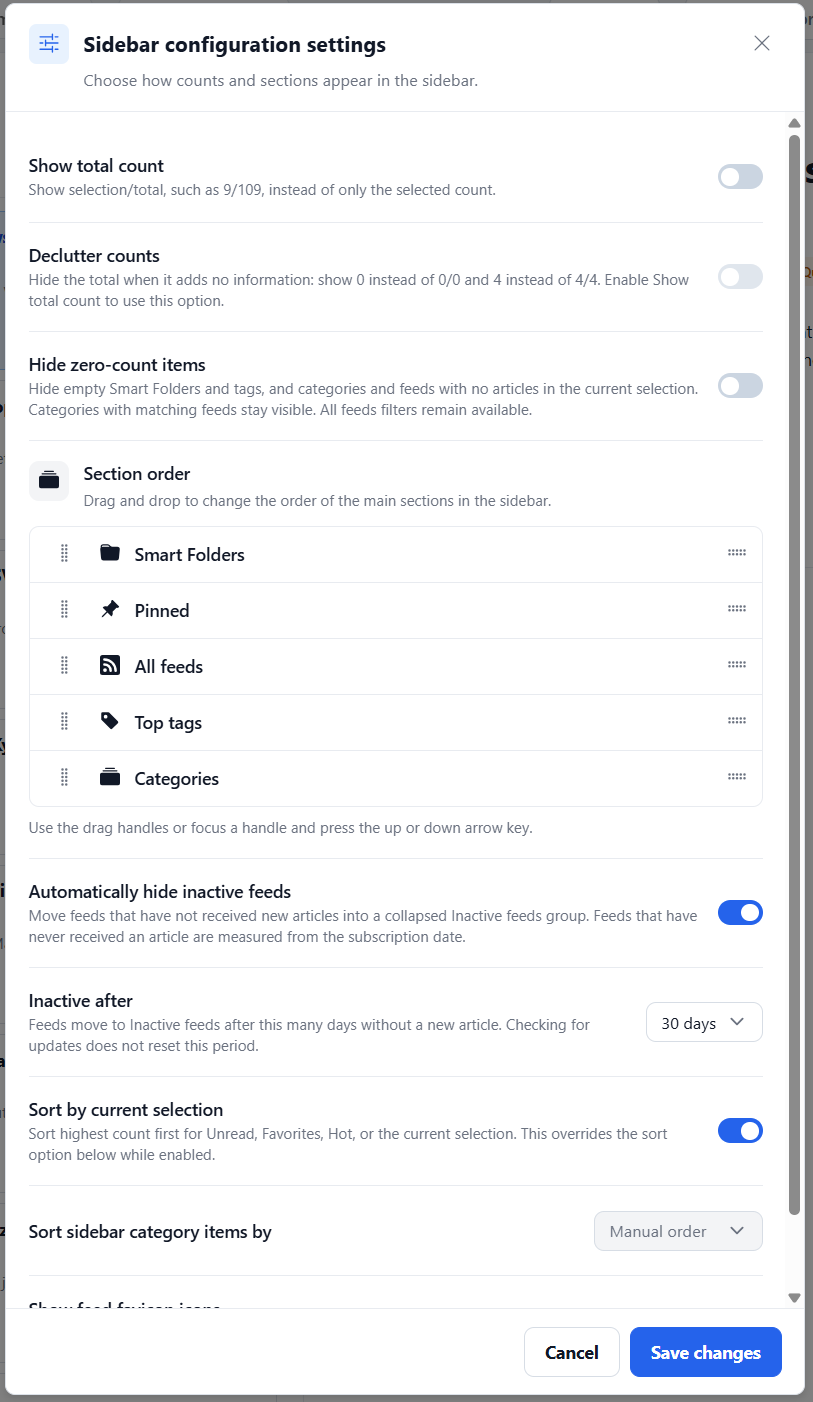
The screenshot shows an example configuration, rather than the defaults. Scroll within the dialog to reach all options, including Show feed favicon icons.
Show total count
Default: enabled. Shows the current selection count followed by the total, such as 9/109: nine articles match the selected status out of 109 articles. The selected count changes when you switch between Unread, Read, Favorites, Daily briefing, or another status. The total combines unread and read articles.
This format applies to categories, feeds, All categories, and pinned shortcuts. Smart Folders, tags, and the All feeds status filters retain their own counts. Turn this option off to show only the selected count, such as 9.
Declutter counts
Default: enabled. Requires Show total count. Hides the total when it adds no information. The /total portion appears only when the total is greater than zero and differs from the selected count.
| Selection / total | With decluttering | Meaning |
|---|---|---|
0/0 | 0 | No articles |
4/4 | 4 | Every article matches the selection |
0/4 | 0/4 | Articles exist, but none match the selection |
9/109 | 9/109 | Some articles match the selection |
Turning off Show total count turns off and disables Declutter counts. To use it again, enable Show total count, then enable Declutter counts.
Hide zero-count items
Default: disabled. Hides Smart Folders and tags with zero counts, plus feeds and categories with no articles matching the current status. A feed showing 0/4 can therefore be hidden even though it contains articles. Categories containing matching feeds stay visible.
The All feeds filters, such as Daily briefing, Unread, Read, Clicked, and Hot, remain available at zero. Pinned shortcuts also remain available. Feeds in the Inactive feeds group are kept accessible even when their selected count is zero. This setting changes visibility only; it does not delete articles or subscriptions.
Section order
Drag the handles to arrange the main sidebar sections. For keyboard control, focus a handle and press Up or Down. The default order is:
- Pinned
- Smart Folders
- All feeds
- Top tags
- Categories
Pinned can be moved, just like the other sections. Global actions such as Add new feed, Refresh feeds, and Mark as read stay above these sections; management actions stay below them. Saving applies the new order without reloading the page. Ordering does not force empty sections to appear: for example, Pinned is absent when nothing is pinned.
To add a shortcut, select a feed or category, open Edit feed or Edit category, enable Pinned, and save. A shortcut uses the same selection and counts as its original item; pinning does not move the subscription. Pinned categories appear before pinned feeds, following the sidebar’s category and feed ordering.
Automatically hide inactive feeds
Default: disabled. Moves feeds that have not received a new article recently into a collapsed Inactive feeds group at the bottom of Categories. Expand the group to access those feeds. Their subscriptions and assigned categories are preserved, and this setting does not disable fetching updates.
Categories with no remaining visible feeds are hidden while this option is on. Turning it off restores the normal category lists, subject to Hide zero-count items if that is also enabled. Pinned shortcuts remain accessible in Pinned.
Inactive after
Choose 30, 60, or 90 days; the default is 30 days. This dropdown is available only when Automatically hide inactive feeds is enabled.
The period starts when RSSMonster last stored a new article from the feed, not when you last read it or checked for updates. A successful refresh with no new articles, an unchanged entry, or a revision does not reset the period. Newly stored articles count as activity even if article filters exclude them. For a feed that has never received an article, the period starts at its subscription date.
When a feed receives a new article, it becomes eligible for its normal category list again as the sidebar data refreshes. The zero-count setting can still hide it if none of its articles match the current selection.
Sort by current selection
Default: disabled. Sorts categories and their feeds by the selected article count, highest first. For example, Unread puts the feeds with the most unread articles first; Favorites uses saved articles instead. Switching status changes the ordering accordingly.
While enabled, Sort sidebar category items by is disabled and its saved choice is overridden. Turning this toggle off restores that choice. Reorder is hidden while dynamic sorting is enabled.
Sort sidebar category items by
Default: Manual order. Controls category order and feed order within categories.
| Option | Behavior |
|---|---|
| Manual order | Uses your saved order and makes manual reordering available. |
| Name | Sorts alphabetically, ignoring case and handling numbers naturally. |
| Selected count | Sorts highest first using the current status, such as Unread or Favorites. |
| Total count | Sorts highest first by unread plus read articles. |
| Recently active | Sorts by the latest new article received, newest first. Categories use the latest receipt among their feeds; feeds with no received articles come last. |
Equal values retain their existing order. Automatic sorting hides Reorder but does not overwrite your saved manual order. Count-based sorting works independently of whether totals are displayed or decluttered. Selected count has the same sorting behavior as Sort by current selection; the separate toggle lets you temporarily override another saved sort choice.
These choices also sort feeds inside Inactive feeds, while that group stays at the bottom of Categories. They do not reorder Smart Folders, tags, or the All feeds status filters. Use Section order to move whole sections.
Show feed favicon icons
Default: enabled. Shows feed icons beside feed names, using an RSS icon when no favicon is available. Turn it off to hide these icons in category lists, Inactive feeds, and pinned feed shortcuts. Names, counts, category icons, and other section icons remain visible.
For subscription management, see Feeds and Categories.