HTML + XPath Feeds
HTML + XPath feeds let RSSMonster follow websites that do not provide a usable RSS or Atom feed. RSSMonster downloads the webpage, uses XPath expressions to identify repeated article elements, and converts the extracted results into normal feed articles.
Create an HTML + XPath Feed
- Open Add new feed.
- Enter the website URL, choose a category and crawl period, and select Validate feed.
- If the URL returns a valid RSS or Atom feed, RSSMonster continues with the normal feed workflow.
- If the website responds successfully but the page is not an RSS or Atom feed, RSSMonster opens the HTML + XPath (Web scraping) dialog and analyzes the page.
A timeout, unreachable host, or empty response produces a validation error instead, because RSSMonster has no page content it can safely preview.
Configure the XPath Expressions
RSSMonster starts with general-purpose expressions that work for many common article and card layouts. Change them when the initial analysis does not select the right content.
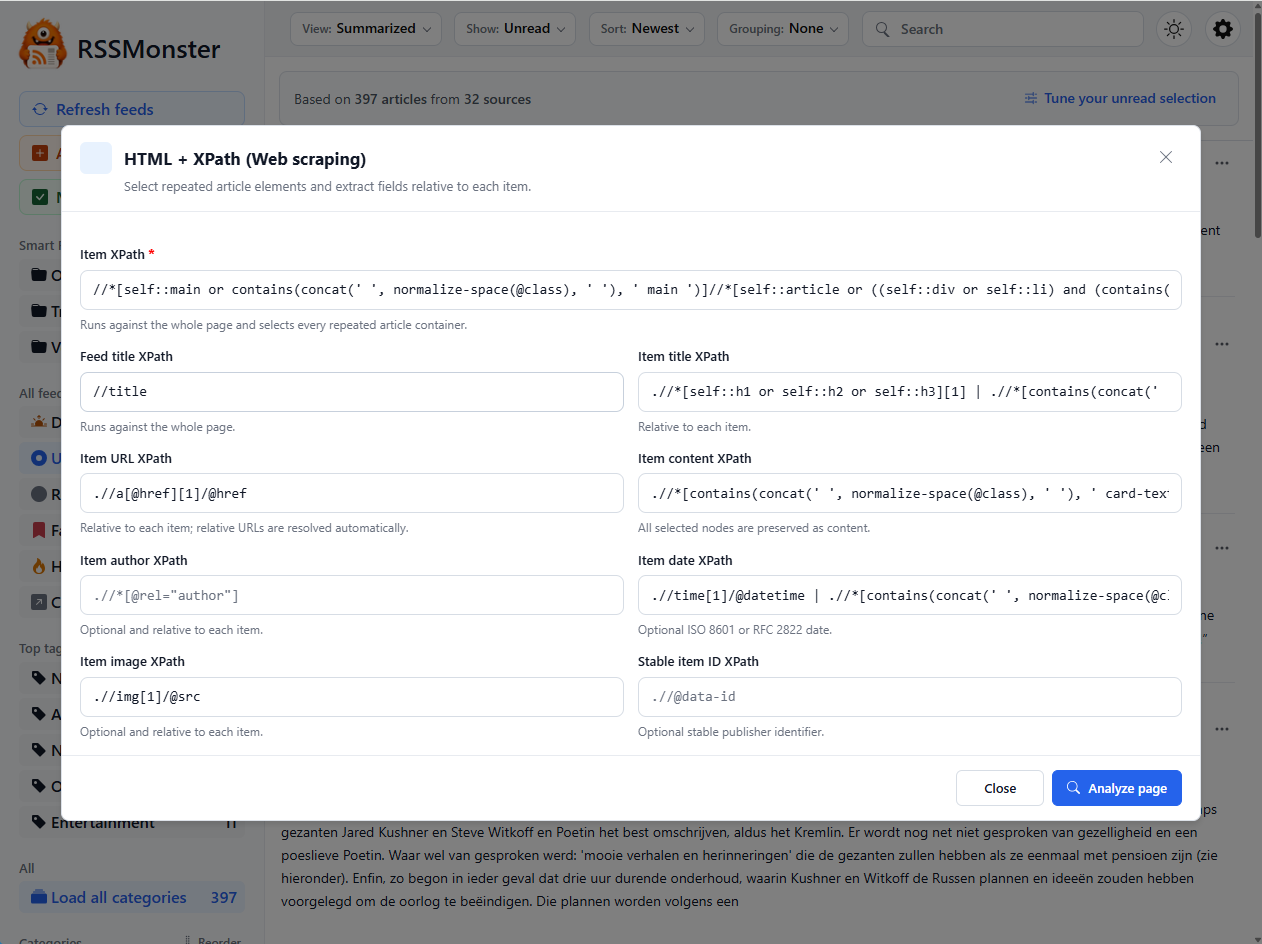
The fields have two different scopes:
- Item XPath runs against the complete document. It must select every repeated element that represents an article or entry.
- Feed title XPath also runs against the complete document.
- All other item fields run relative to each element selected by Item XPath. Relative expressions normally begin with
..
At least one of Item title XPath, Item URL XPath, or Item content XPath must be configured.
| Field | Purpose |
|---|---|
| Item XPath | Selects the repeated article containers. |
| Feed title XPath | Extracts the name of the webpage feed. |
| Item title XPath | Extracts each article title. |
| Item URL XPath | Extracts each article link. Relative links are resolved against the webpage URL. |
| Item content XPath | Selects the text or HTML stored as the article content. |
| Item author XPath | Extracts the optional author name. |
| Item date XPath | Extracts an optional ISO 8601 or RFC 2822 publication date. |
| Item image XPath | Extracts an optional image URL. |
| Stable item ID XPath | Extracts a publisher identifier that can help RSSMonster recognize the same item on later crawls. |
Select Analyze page after changing the expressions.
Review the Extracted Articles
The preview shows what RSSMonster was able to extract before anything is saved. It reports the number of matched elements and usable articles and shows up to five example results.
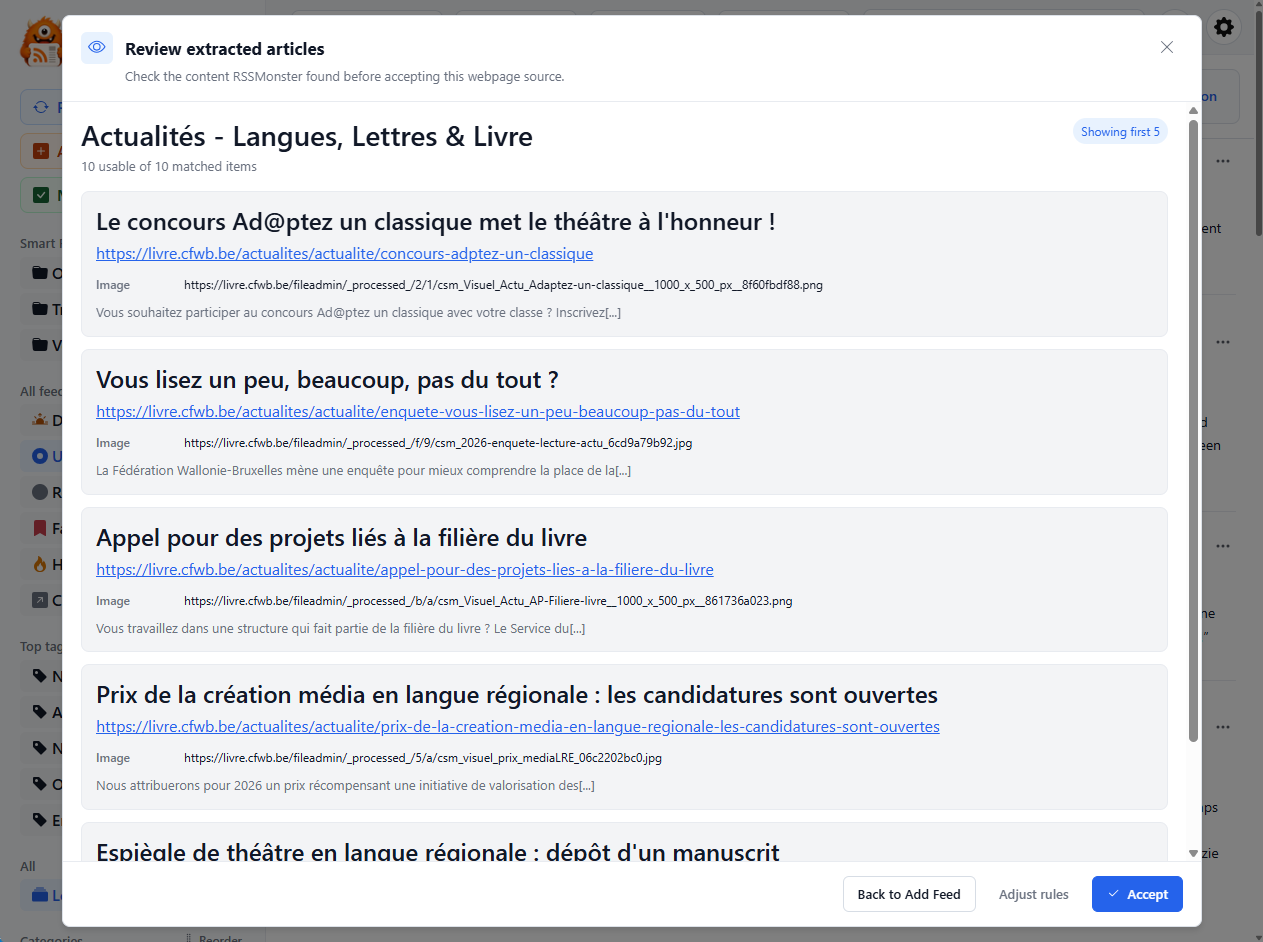
Check that:
- each preview card represents a distinct article;
- titles and links point to the expected content;
- the extracted summary or body contains useful article text;
- dates, authors, images, and stable IDs are correct when configured.
Select Adjust rules to return to the XPath editor. Select Accept when the preview is satisfactory. RSSMonster returns to Add new feed and fills in the discovered feed name and description. Review those values and select Save changes to create the feed.
Closing or returning from the preview does not store a feed by itself. The feed is created only when it is saved from Add new feed.
What Happens During Crawling
After the feed is saved, RSSMonster uses the same webpage URL and XPath rules on every crawl. Extracted entries continue through the normal RSSMonster article pipeline, including identity handling, filtering, content normalization, duplicate detection, and optional AI processing.
RSSMonster skips extraction when the server reports that the page has not changed. Fetch failures, timeouts, invalid stored expressions, and pages that no longer contain matching items are recorded as feed crawl failures rather than silently producing articles.
HTML + XPath extraction processes the HTML returned by the web server. It does not run webpage JavaScript, so content rendered only in the browser may not be available for extraction.
Troubleshooting
No items are found
Make Item XPath less specific and confirm it selects the repeated container around each article, not a single title or link.
Titles or URLs repeat
Make item-field expressions relative to the selected item. For example, use .//h2 or .//a[1]/@href rather than a document-level expression such as //h2.
Too much content is stored
Narrow Item content XPath to the summary or article-body element instead of selecting the complete item container.
The preview works but a later crawl fails
The publisher may have changed the page structure. Analyze the page again with expressions that match its current HTML before creating a replacement feed.