Actions
Actions apply repeatable rules to incoming articles during crawling. For example, a rule can bookmark release announcements or tag articles mentioning a project. Each rule combines a text-matching condition with an action to perform when that condition matches. Rules apply across your subscribed feeds and do not require AI processing.
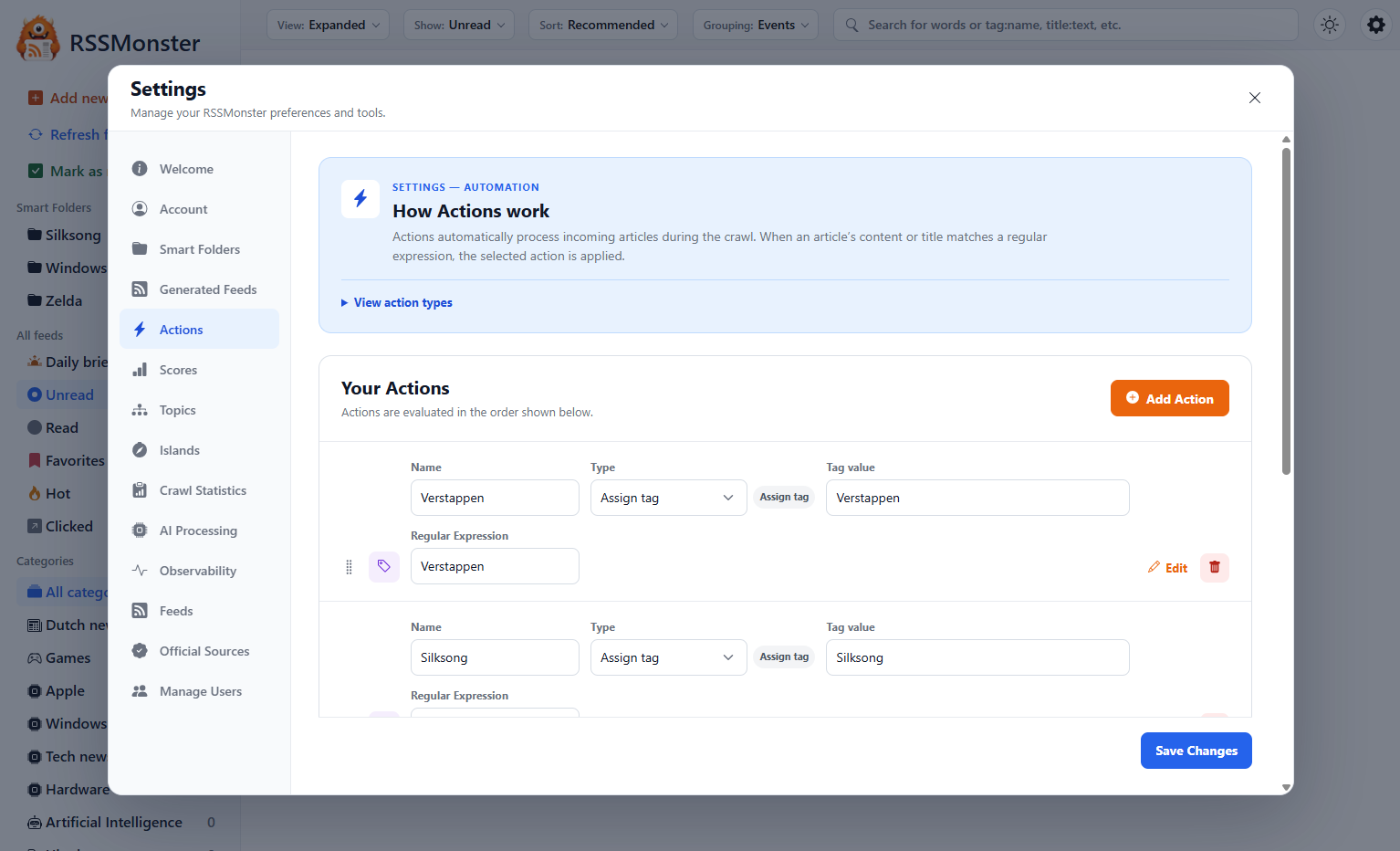
Create an action
- Open Settings → Actions.
- Select Add Action.
- Enter a descriptive Name so you can recognize the rule later.
- Choose the Type, such as Assign tag or Set favorite.
- Enter a Regular Expression to identify matching articles.
- For Assign tag, also enter the Tag value to add.
- Select Save Changes to save your rules.
You can edit the fields of an existing rule or use its trash button to remove it. Select Save Changes after editing or removing rules as well.
Example: assign a tag to incoming articles
To collect articles mentioning Verstappen under one tag, add a rule with:
- Name: Verstappen news
- Type: Assign tag
- Tag value:
verstappen - Regular Expression:
/verstappen/i
When an incoming article contains “Verstappen” in any checked field, RSSMonster adds the verstappen tag. The i flag makes the match case-insensitive, so “VERSTAPPEN” also matches. The tag is added alongside the article’s other tags.
Select the tag on an article or in the sidebar to find related articles, or search for tag:verstappen. See Tags for more ways to organize and find tagged articles.
Example: mark matching articles as favorites
To save incoming articles mentioning Nintendo or Zelda, add another rule with:
- Name: Save Nintendo and Zelda news
- Type: Set favorite
- Regular Expression:
/nintendo|zelda/i
The | means “or,” so either word is enough to match. RSSMonster automatically bookmarks matching articles, making them available in Favorites in the sidebar. Setting a favorite does not itself mark the article as read. See Bookmarks for more about favorites.
To both tag and favorite the same articles, create two actions with the same regular expression: one with Assign tag, and one with Set favorite.
Available actions
| Type | Result |
|---|---|
| Discard article | Store a filtered record hidden from normal queries; skip AI analysis for that entry. This is not physical deletion. |
| Set favorite | Bookmark the article. |
| Mark as read | Set its read state. |
| Mark as clicked | Set its clicked/read-later indicator. |
| Mark as advertisement | Override the advertisement score to 0; this score measures absence of advertising, so lower means more promotional. |
| Mark as low quality | Override the quality score to 0. |
| Assign tag | Add the supplied tag. |
Writing a rule
Use a JavaScript regular expression, either a plain pattern or /pattern/flags. Plain patterns are case-sensitive; /release|changelog/i matches either word without regard to case. For a whole word, use /\bsecurity\b/i.
The crawler tests available HTML content, plain text, title, description, and URL separately. A match in any field is enough. Anchors such as ^ and $ apply to an individual field, not to all fields joined together. Invalid expressions are rejected when saving; a blank expression does not match anything.
Rules run in list order. Several matching actions can apply, but a matching Discard stops further action evaluation. Score overrides remain effective when analysis results are applied. Saving rules does not launch a historical reprocessing job, so do not expect existing stored articles to change immediately.
Choose the right kind of filter
| Goal | Feature |
|---|---|
| Find stored articles by date, state, or score | Search |
| Keep a reusable search | Smart Folders |
| Accept only certain future entries from one feed | Feed item filters |
| Apply a state, tag, or score rule during crawling | Actions |
Search tokens such as quality:>0.7 are not action conditions. Actions match text using regular expressions; use search and Smart Folders for score-based selection. The API’s POST /api/actions replaces the complete rule list, so integrations should load the existing list before editing it.