Daily Briefing
Daily Briefing brings recent articles from your subscriptions together in one reading collection, with a short overview of the stories they cover. It helps you catch up on recent news, follow developing events, and focus on articles that match your interests. You choose the time period and eligibility settings to make the briefing as broad or focused as you want.
Select Daily briefing in the sidebar or the Show menu when AI features are enabled. The briefing uses your saved preferences each time you open it.
Read your briefing
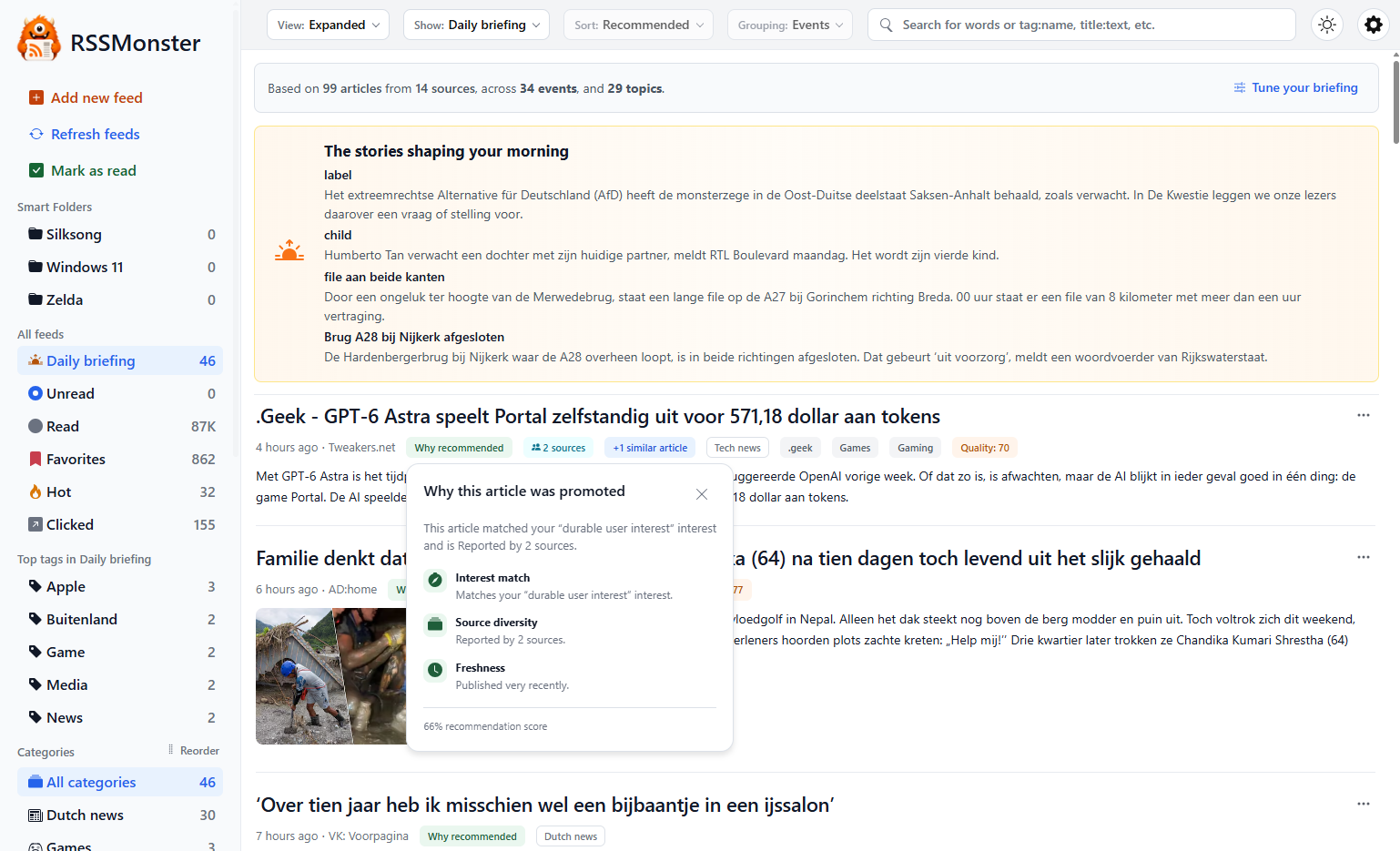
The overview starts with a context strip showing the eligible article and source totals, newly created Events, and matched Interest Islands. The stories shaping your morning highlights up to four event stories, followed by the full collection of matching articles.
Read, bookmark, and navigate these articles with the same controls as other collections. Where available, Why recommended explains the signals behind an article’s recommendation. See Scoring and Ranking for how those signals contribute to ordering.
The story excerpts come from stored article text; missing source text can produce a headline without an excerpt. Opening the briefing does not generate a new model-written summary on every visit. Reader mode keeps this introduction compact, and narrow portrait screens hide excerpts. If the overview fails to load, you can still read the article list.
Tune your selection
- Open Daily briefing.
- Select Tune your briefing at the right of the context strip above the story overview.
- Change the article selection, lookback period, or coverage settings.
- Select Save changes to apply your preferences and refresh the briefing.
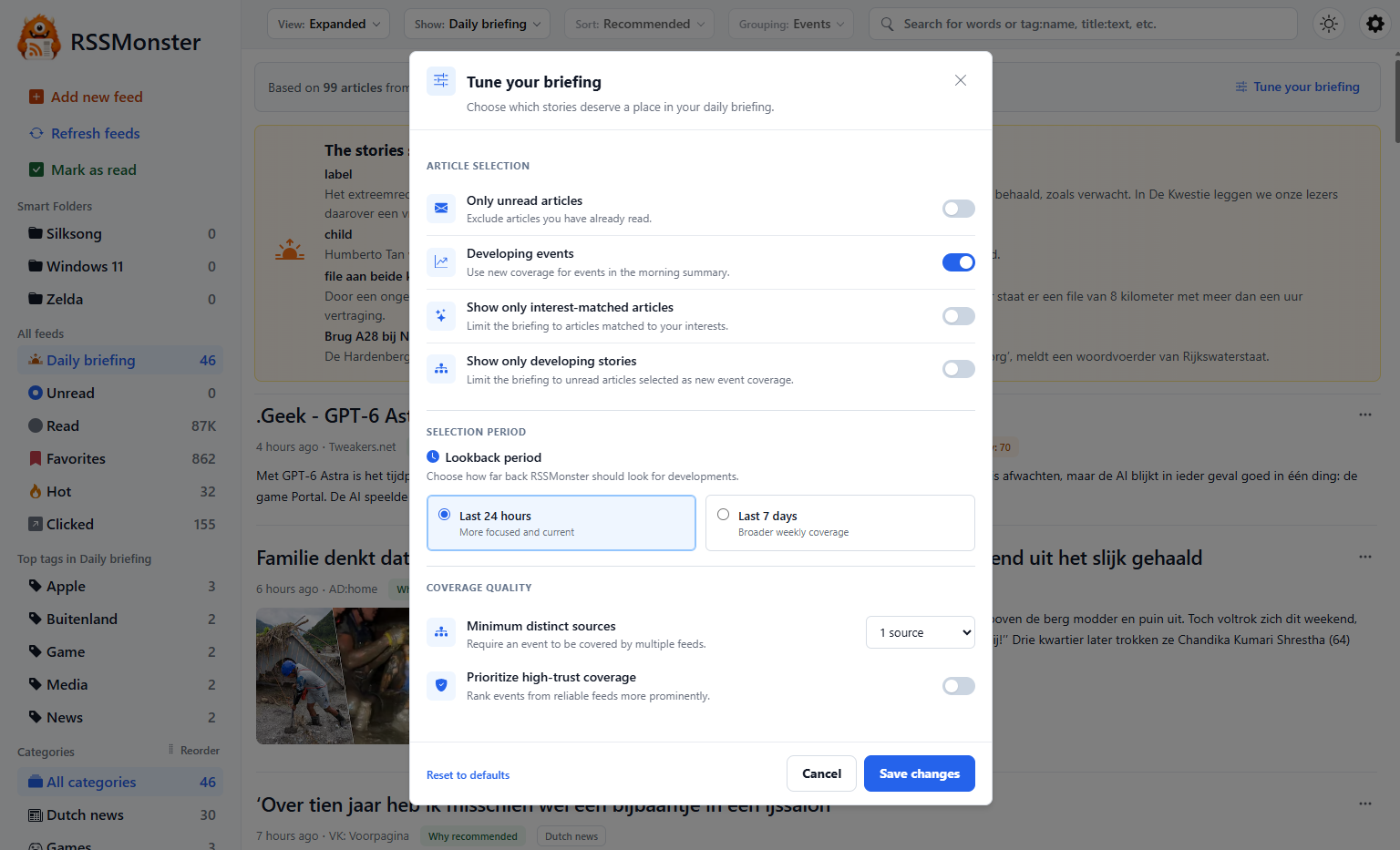
Article selection
| Setting | What it changes |
|---|---|
| Only unread articles | Excludes articles you have already read. |
| Include Hot articles | Enabled by default. Includes Hot articles that meet your briefing filters; disabling it excludes all Hot articles, even if they also match your interests or belong to a qualifying Event. |
| Mark as read while scrolling | Marks briefing articles as read after they pass the viewport. Available only when Only unread articles is enabled; separate from the Unread view’s scrolling setting. |
| Developing events | Uses new coverage of continuing events in the morning story overview without restricting the article list to developing stories. |
| Show only interest-matched articles | Limits the briefing to articles with nonzero stored interest, including negative values; Recommended still applies negative interest as a penalty. |
| Show only developing stories | Limits the article collection to qualifying unread articles selected as new event coverage. |
The two Show only options are mutually exclusive. Switching one on switches the other off. Developing events affects the story overview, while Show only developing stories filters the article collection itself.
Hot articles qualify through links from other feeds in your subscriptions. Including them does not bypass the saved period, unread-only, minimum-source, or Show only filters.
Selection period
Choose Last 24 hours for a focused current view or Last 7 days for broader weekly coverage. The default is Last 7 days.
Coverage quality
Minimum distinct sources lets you require coverage from one to five separate feeds for an event to qualify. One source gives the broadest selection; higher values favor stories covered by more of your subscriptions and can substantially reduce the briefing. Separate feeds do not necessarily mean independent reporting.
Prioritize high-trust coverage uses Recommended ordering before event-strength fallbacks in the morning story overview. FeedTrust contributes through Recommended’s quality component. This setting changes summary ordering; it does not set a minimum trust threshold.
Save, cancel, or reset
Save changes stores the preferences for your account, closes the dialog, and reloads the briefing selection and overview. Cancel, the close button, or Escape discards unsaved edits. If saving fails, the dialog keeps your edits so you can retry.
Reset to defaults selects the last seven days, one required source, and enables Include Hot articles. It switches off the other optional selection, scrolling, developing-event, and trust settings, including unread-only. This includes both read and unread articles. Reset changes the draft; select Save changes to keep it. The screenshot shows customized settings, rather than the defaults.
For a simple daily catch-up, choose Last 24 hours and Only unread articles. For a broader weekly review, choose Last 7 days and leave unread-only off. To focus on ongoing stories, enable Show only developing stories.
Understand counts and empty results
The overview and navigation count describe your global briefing, while a selected category, feed, or tag can narrow the article list. The current Last 24 hours query uses the Today date window, whereas the overview count uses a rolling day; counts can differ near midnight. A compact category menu can also show zero for Briefing because category-specific briefing counts are not supplied.
An empty briefing is valid. Try seven days, one source, and disabling interest-only or developing-only filters. Global score thresholds still apply.
Receive a briefing by email
In Settings → Account, verify your address, enable daily briefing email, and save a delivery time and timezone. SMTP must be enabled by the operator. The email contains Recommended and Top Stories sections with up to ten articles each, without repeating an article between sections. It uses saved briefing eligibility and does not reproduce the four-story on-screen overview exactly.
For technical details, see the native API, scoring guide, and email operations.